Marketing Popups are great for engaging website visitors and boosting conversions. Use them to promote a sale/offer, encourage customers to schedule a call, request a quote, register for an event, download a white paper or eBook, and tons of other use cases! Popups can be crafted in a sliding corner, toolbar, or center lightbox style. The audience that sees your popup can also be targeted with a variety of criteria.
Popups are an example of marketing automation. They are designed to engage and inform site visitors and help to convert them into customers. You can learn more in our complete guide to automated marketing.
Note: There are also posts available for the other Smart Message types, both Chat Smart Messages and Email Smart Messages. Marketing Popups are available in all of our packages.



How to create a Popup
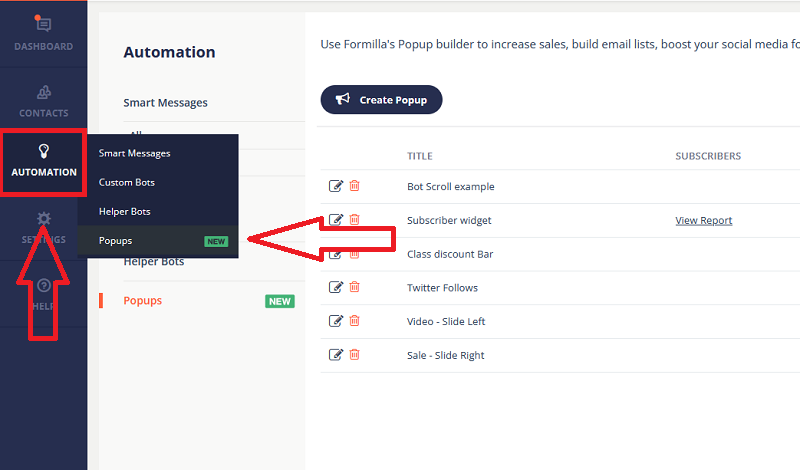
- Mouse over Automation on the left-hand side and click on Popups.
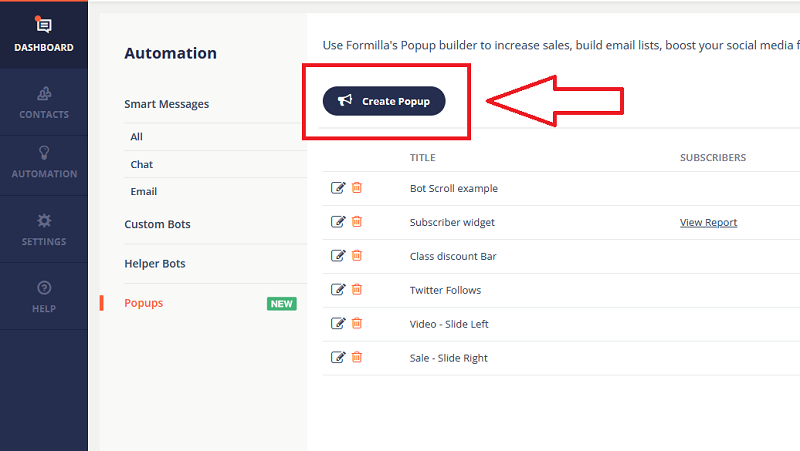
- Click on the Create Popup button.
- Name your popup in the top field. This is not a name the visitor sees, but a name you choose for your own reference like “July 4th 2024 promotion” or “Maintenance advisory” for example.

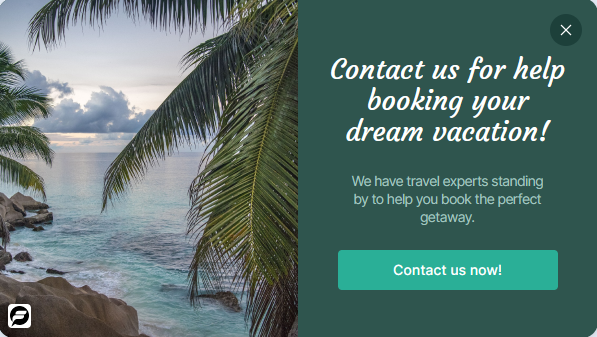
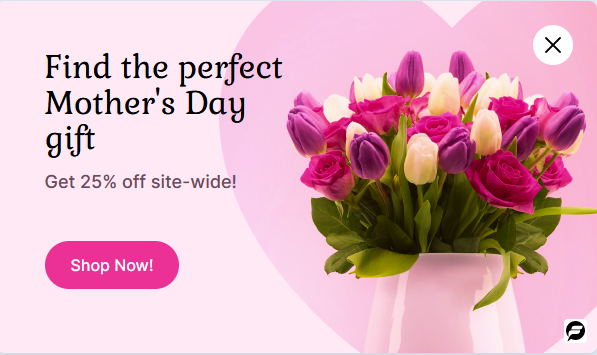
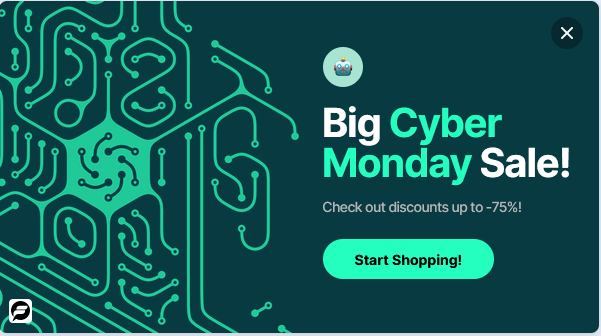
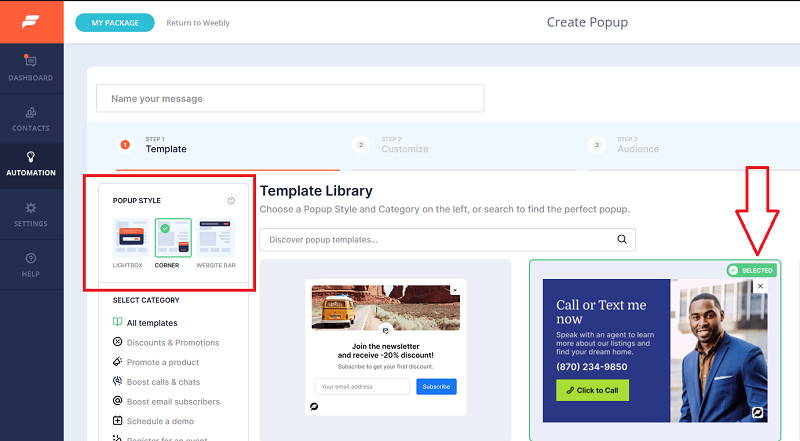
- Select the Popup Style that you would like (Lightbox, Corner, or Website Bar). Then, pick the Template that you would like to use from the Template Library. There are also category filters that you can use below the Popup Style selection to filter by general type of Popup you need.
Customize Tab
- Click on the Step 2/Customize tab. Here you can modify various parameters of the Popup you are creating, like message text, background image, color options, etc. Options that are available to customize will vary depending on the template that you have selected.

- Many templates have various options for the Button that appears on the Popup. Using the same template as an example, you can click where it says “Click to Call” to bring up various customization options for the Button itself.
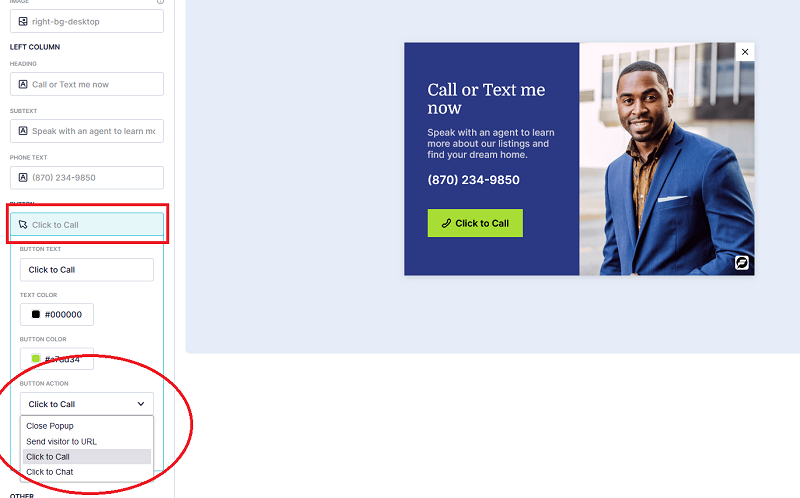
You can change the Button Action to specify whether clicking the button closes the Popup, navigates to another site, starts a call, or starts a chat on a click. Some templates have a specific use case already and will not have a Button Action menu (the initial “Subscribe” button on email subscription templates for example).
- Some templates have a secondary Success Popup. For example, email subscription templates have a second Popup thanking visitors for signing up. You can customize the Success Popup by clicking on the appropriate tab.

Audience Tab
Use filters on the Step 3/Audience Tab to configure which visitors can see the Popup you are creating. We have a deeper look at the Audience Tab in our post on using Chat Smart Messages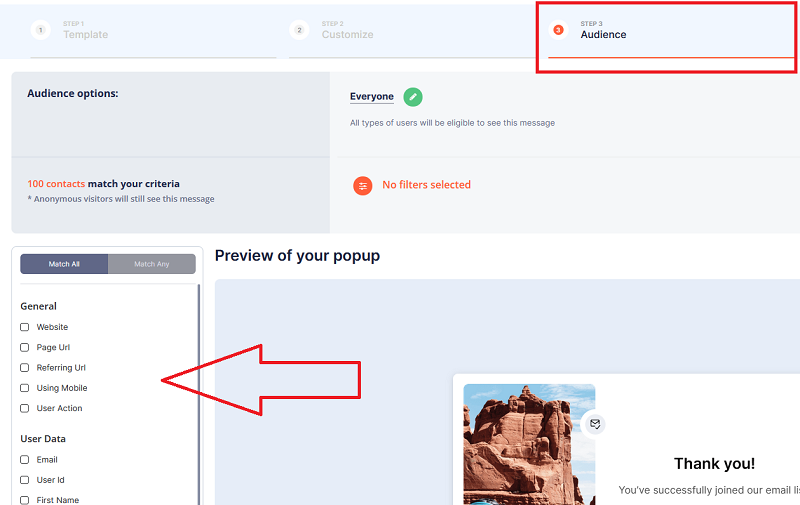 .
.
Advanced Tab
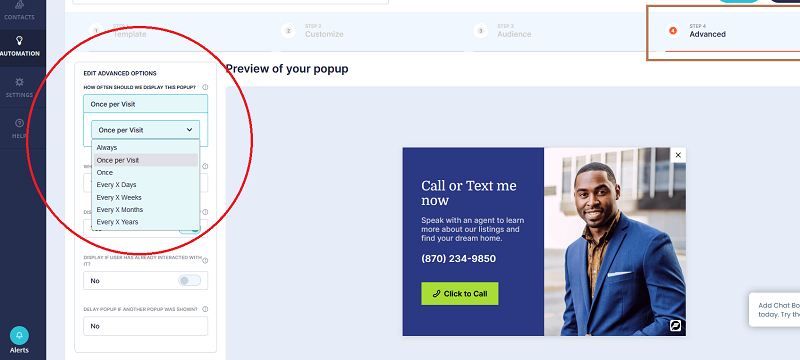
- How Often Should We Display This Popup.
Once per Visit is set by default, but this can be set to several other options like always, once only, every x days, etc.
Tip: “Always” is a good way to continuously see your popup, especially when you’re testing how it looks, adjusting text, etc.
- When Should This Popup Be Displayed.
Time based means the Popup appears after a specified amount of time spent on the page by a visitor. On Scroll based means the Popup will appear when the visitor scrolls down the page.

- Choose whether the Popup displays if the user is about to exit the site. Formilla will detect if a user is intending to exit (based on visitor mouse movements) and display this Popup beforehand if “Yes” is checked.
- Choose to display the Popup again if the user has already interacted with it. By default, a popup will only appear if a user has not interacted with it before. A visitor is considered to have ‘interacted’ with the popup when they click the action button to “Continue”, “Learn More”, etc. You can switch to “Yes” if you have a Popup you want to override this default behavior. You may want to do this if you have a maintenance advisory or an announcement about holiday hours for example.
Tip: It is also a good idea to set this setting to ‘Yes’ when testing so that you repeatedly see the Popup appear.
- You can delay the Popup a set amount of time if another Popup was already shown. If you have another Marketing Popup set to fire for example, this allows you to set a timer separating how long to delay before this Popup appears. This can help avoid a frustrating sequence of consecutive Popups appearing for the visitor.
You are finished with the setup of your Marketing Popup! Now scroll back up to the top and click on Save to save your creation. Click on Publish to have the Marketing Popup displayed right away, or click on the Schedule icon right next to the Publish button to specify the start and end date and time for your Popup. Defining a schedule is great if you plan to offer a holiday sale for a defined period of time, or a maintenance Popup you only want to show for a few days and then automatically stops.
Marketing Popup Conversion Statistics
You can view the performance of your marketing popups by mousing over Automation and clicking on Popups. Here you will see a list of Marketing Popups that you have created along with information like the status of a given Popup, the created and sent date, and the number of view and clicks for a given popup. You can see a conversion percentage by mousing over the value in the Converted column.

Tip: You can also use our Google Analytics app integration to post conversion statistics right into your Google Analytics account.
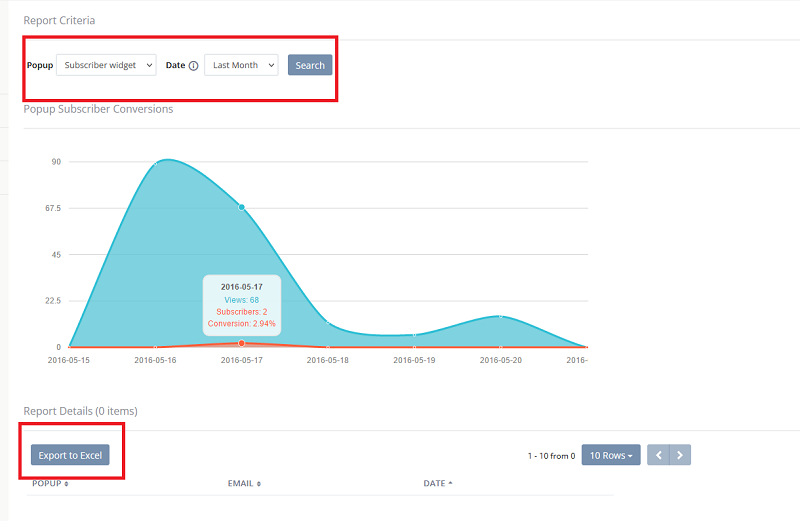
Email subscriber templates also have a View Report link that you can click for a more detailed report (in the Subscribers column in the above screenshot). Clicking on this link will take you to more subscriber information where you can sort by a date range that you specify. You can export the contacts gathered by clicking on the Export to Excel link.