Helper Bots leverage ChatGPT’s incredible Artificial Intelligence technology to respond to visitor questions around the clock. You’ll see a huge improvement in your staff’s efficiency and dramatically boost customer satisfaction too. Your bot can be continually trained for better accuracy, and additional “Topics” can be added to improve its knowledge. Chatbots are available as a paid add-on for any of our current premium packages.
In this tutorial we will cover how to create a bot that is ready to respond to your website visitors. We will go over how to train your bot by adding Topics and touch on how the bot functions in a conversation with your visitor.
Watch our video tutorial if you prefer to see it in action:
Creating Your ChatGPT Bot
Adding Information With Topics
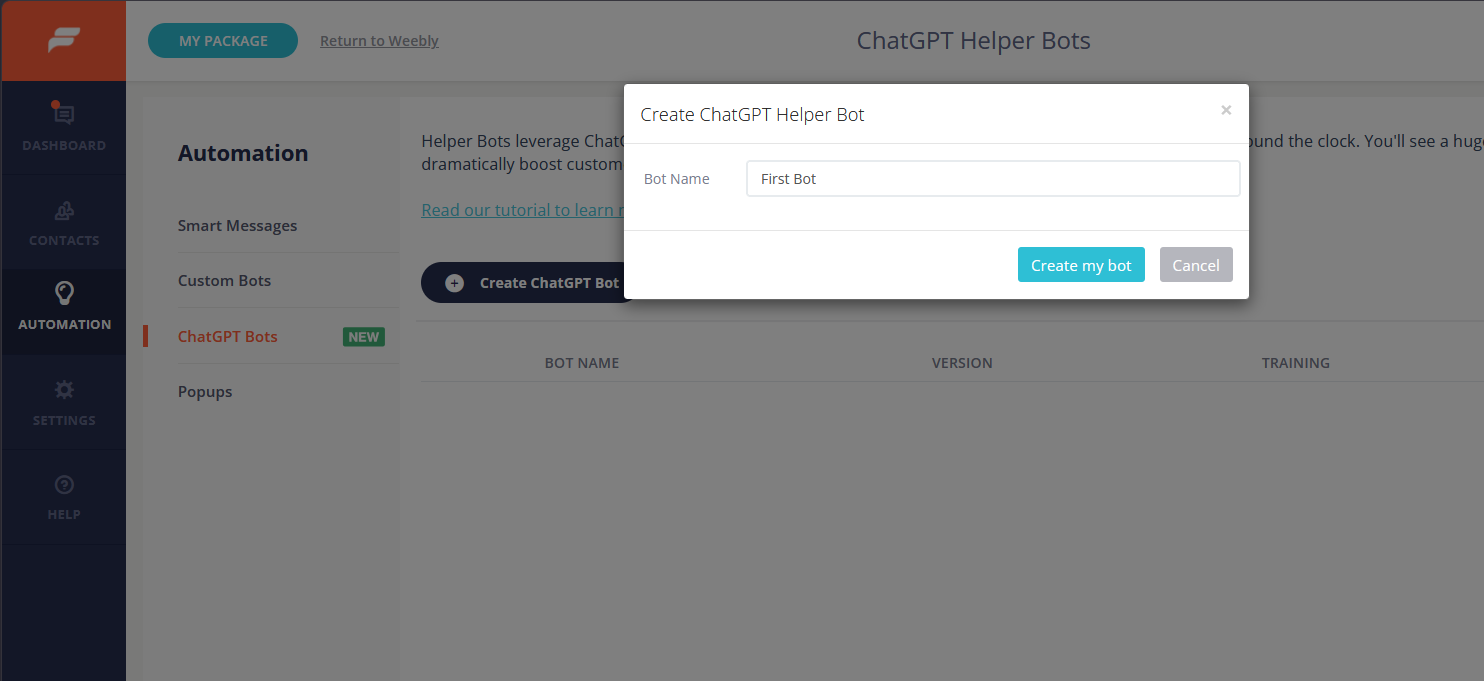
Inside your Formilla account, mouse over Automation and select ChatGPTBots from the sub-menu. Click on the Create ChatGPT Bot button.
Enter a name for your bot. Click on Create my bot when finished.
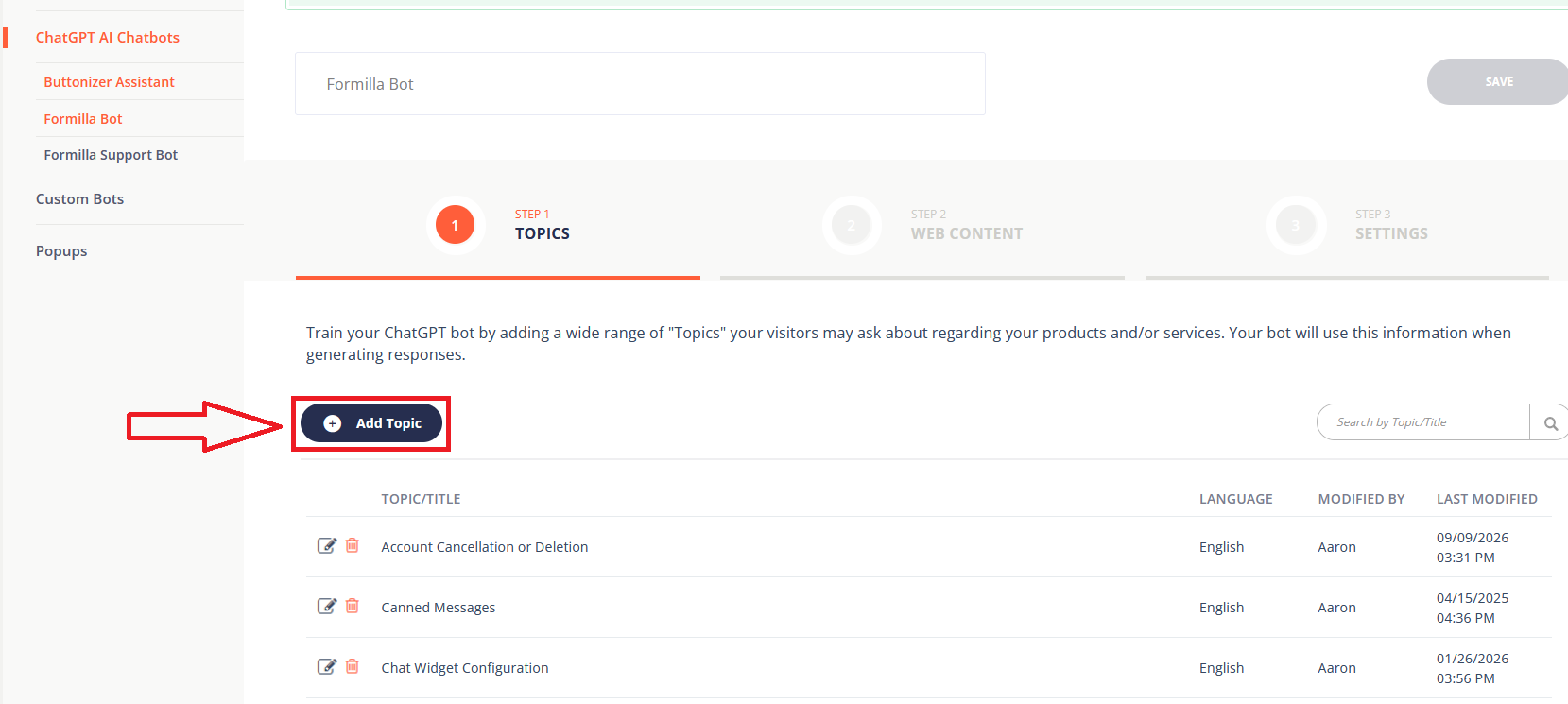
Here on the Step 1/Topics tab, click on Add Topic to train your ChatGPT bot by adding a wide range of “Topics” your visitors may ask about regarding your products and/or services. Your bot will use this information when generating responses.
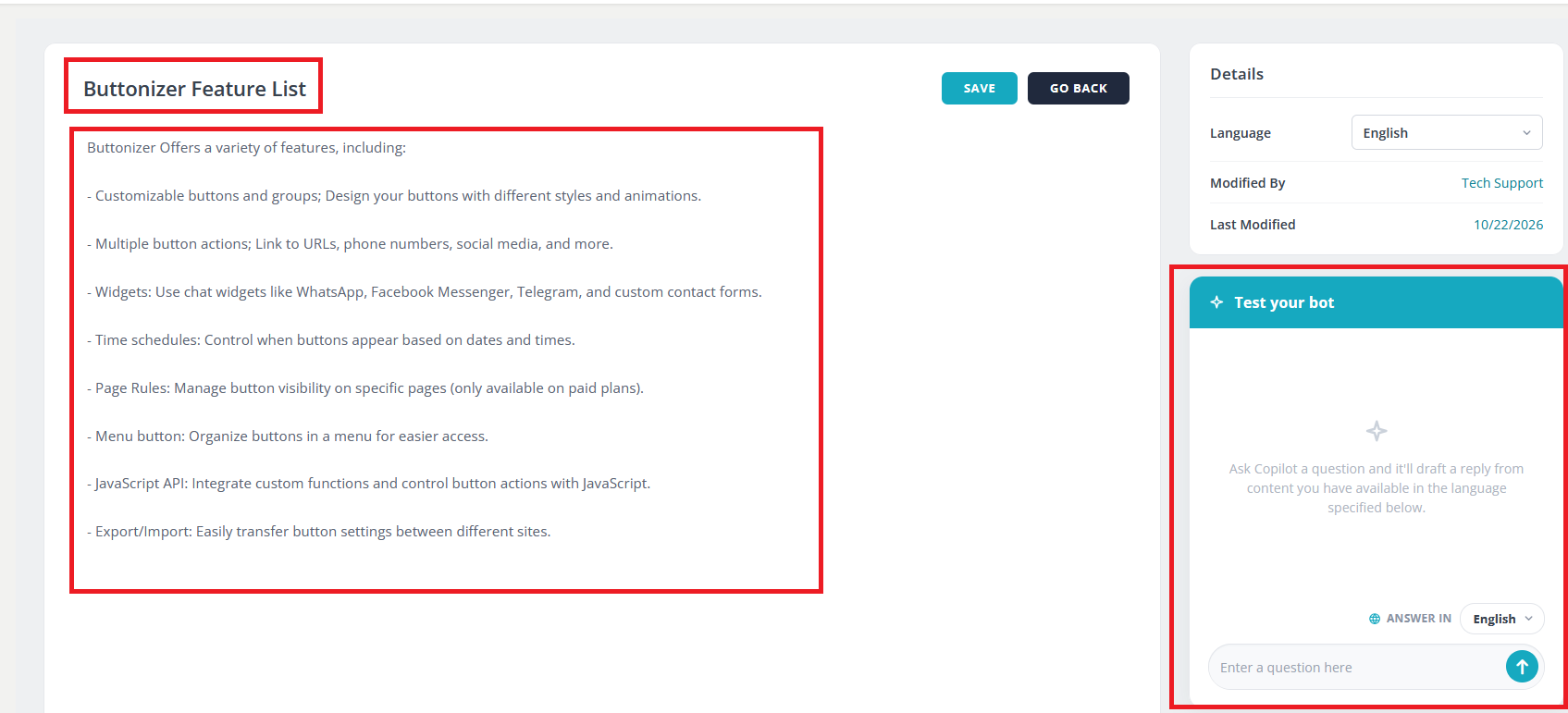
When creating each Topic, enter a heading at the top like you see in the screenshot below. For the Topic content/body, enter all the information for that Topic. For example, you’ll see in this case we have a product called Buttonizer and have set a Topic heading of Buttonizer Feature List. Notice for the training content, we summarized all the product features at a high-level, so the ChatGPT bot will be able to use this information when it generates its own responses. Be sure to click on Save and then test your bot on the right-hand side to make sure it’s successfully answering all the questions you expect customers to ask.
Adding Information With Web Content
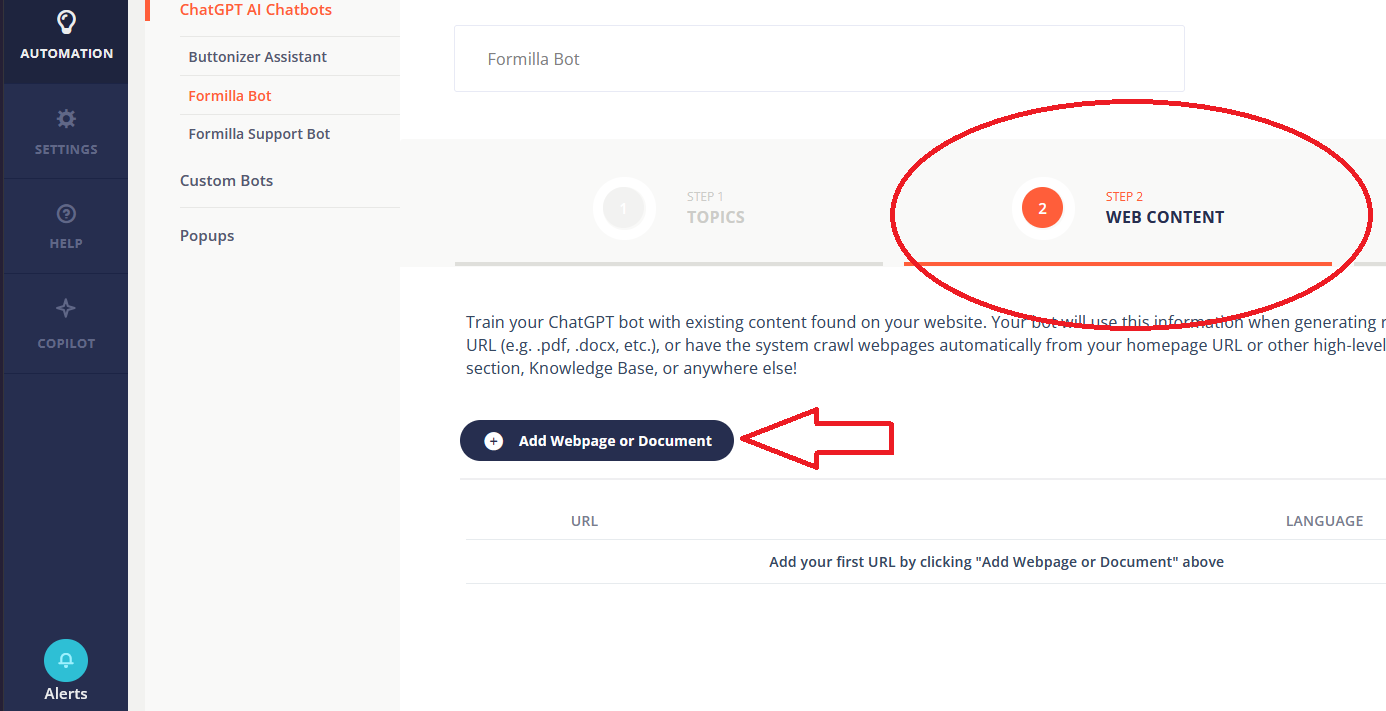
The Web Content tab allows you to add URLs that you want the ChatGPT bot to scrape for information that it will use to answer questions. You can add standard website URLs, for example an FAQ page from your website. You can also add the URL for hosted documents. This lets the ChatGPT bot scrape things like detailed shipping and return policies, user instructions, product manuals, or anything else in document form that you would like to add to the ChatGPT bot.
If creating from scratch, create and name your ChatGPT bot the same as step 1 and 2 above.
Go to the Step 2/WebContact tab and click on Add Webpage or Document
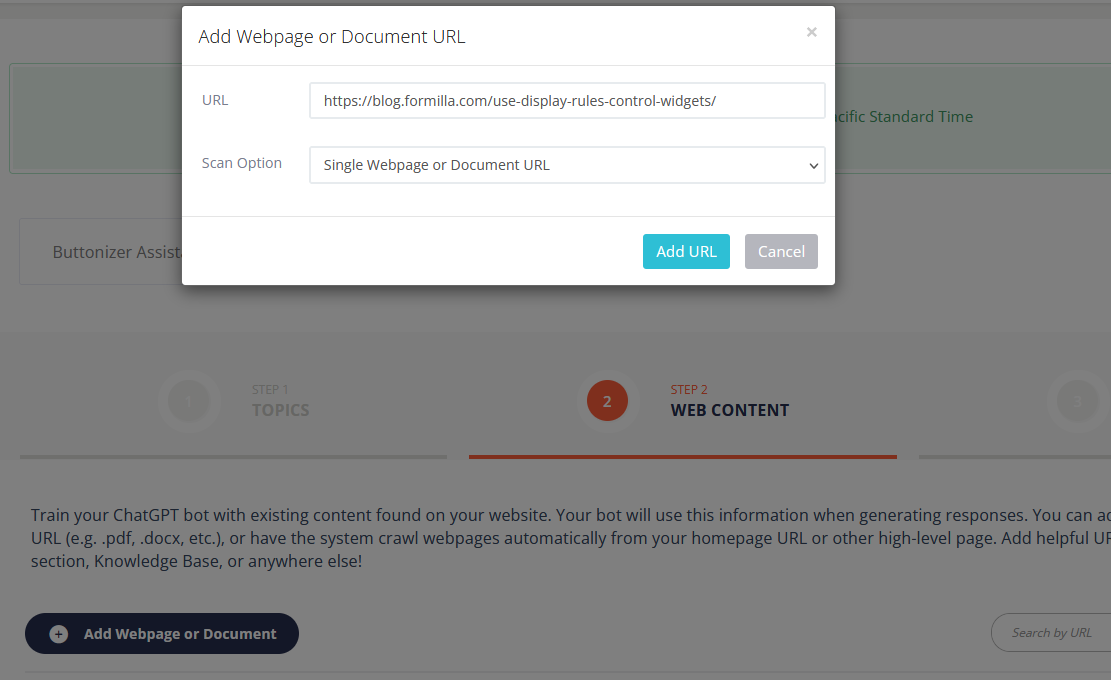
Paste the URL you want the ChatGPT bot to scrape in the URL field. Use the Scan Option drop-down menu to select how many links you want the ChatGPT bot to follow from the page or document you pasted in. The ChatGPT bot will pull in information from all linked pages based on the depth you select. It will scan the pasted URL only if you select “Single Page”. Click on Add URL when done.
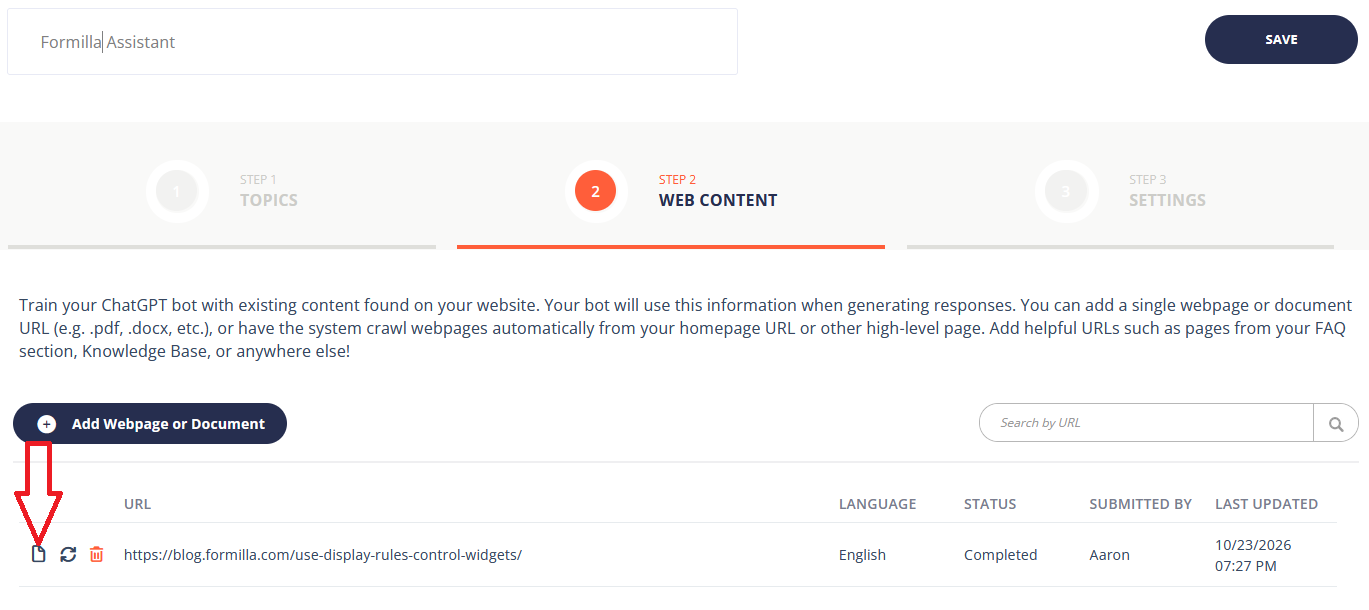
The website(s) scanned will appear in the columns below. The status column will say “Completed” when the scan is done. This occurs quickly for a single page, just refresh your browser page to see the status update. You can click on the far left Paper/Edit icon to see the results of the web page scan.
While looking at the results of the scan, you can also use the test widget on the right side to ask your ChatGPT bot test questions to test how it is answering questions based on the webpage that was just added.
Step 3/Settings Tab
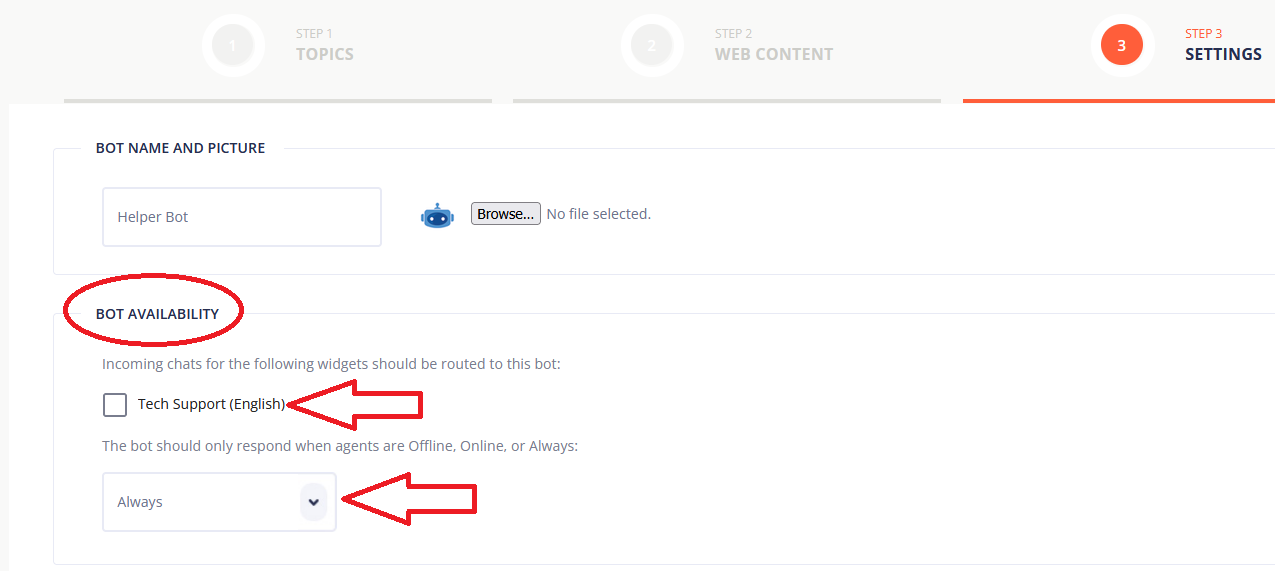
After you’ve entered all your Topics and/or added all your webpages, click on the Step 3/Settings tab. In the first section you can name your bot (Helper Bot by default), which will be visible to website visitors in the chat window. You can also set an image for your bot by clicking on Choose File to upload an image. The default bot graphic will be shown if you choose not to upload an image of your own.
The next section is the Bot Availability section. Select the Widget(s) where you’d like your bot to respond to incoming questions. At least one widget must be selected, and no widget is selected by default. Notice, you can also determine whether the bot should Always respond to incoming questions (24×7), or whether you’d like it to respond while agents are Online or Offline. For example, if you want to closely review how it responds to visitors, especially in the beginning, you can set this to Online. If you’re happy with how it’s responding overall, you can set it to Always or Offline. For example, the main case where you’d use Offline is if you like to provide live human support when your staff is available, and only prefer to fallback on the bot after-hours.
In the Bot Settings section, you can set the preferred response length you’d like the bot to use. Medium is the default setting. Lastly, the No Match Response can be used to instruct the bot how to respond when it doesn’t know the answer to a question. This is a good place to include your office hours and other information to share with your visitor (keep it short though!).
Training Your ChatGPT Bot
The Train my Bot section is where you will want to go to periodically train your Helper Bot. The more Topics you add and keep expanding the content for each Topic, the smarter your bot will become. Conversely, without effort put into training the bot, it will continue to “miss” with answers. In addition to using the Train my Bot section whenever a common question comes in that you know is asked frequently but has not been added yet, it is a good idea to go through the Train my Bot section at regular intervals. Every few days is a good starting point, perhaps adjusting up or down depending on your chat volume.
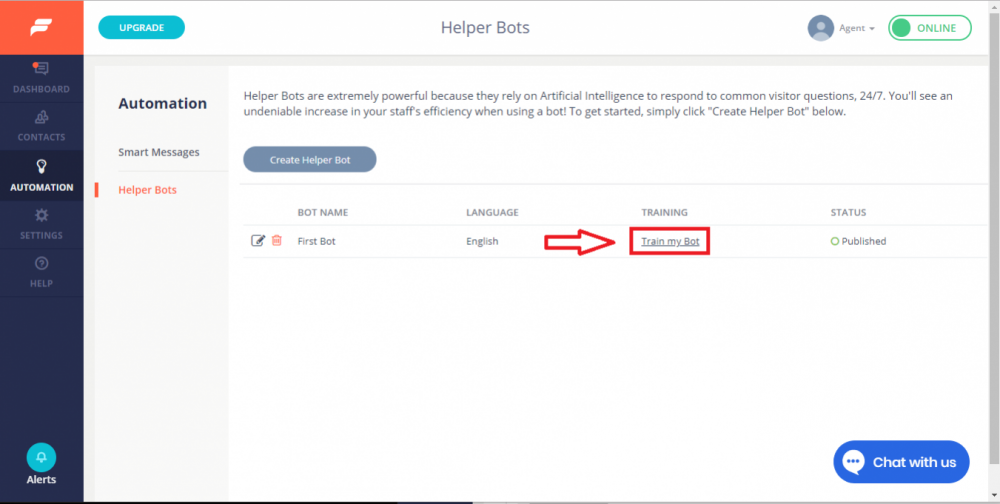
Access the Train my Bot section by mousing over Automation on the left, then clicking on ChatGPT Bots. Your bot will now appear with a Train my Bot link under the “Training” column. Click on this link to go to the Training screen.
In the Training section, you will see a list of phrases from recently completed chat sessions in the Untrained Message column. You can use the View Chat link to see the full chat context to better understand what the user was asking. Click Add Topic to create new training material that answers the question, or click the Edit your Bot button if you want to expand on an existing Topic.
Using Copilot
A Copilot tool is available on the Formilla desktop dashboard. The Copilot tool uses all the information that you have added to your ChatGPT bot and makes that information available quickly on the agent side.
Answering Chats With Copilot
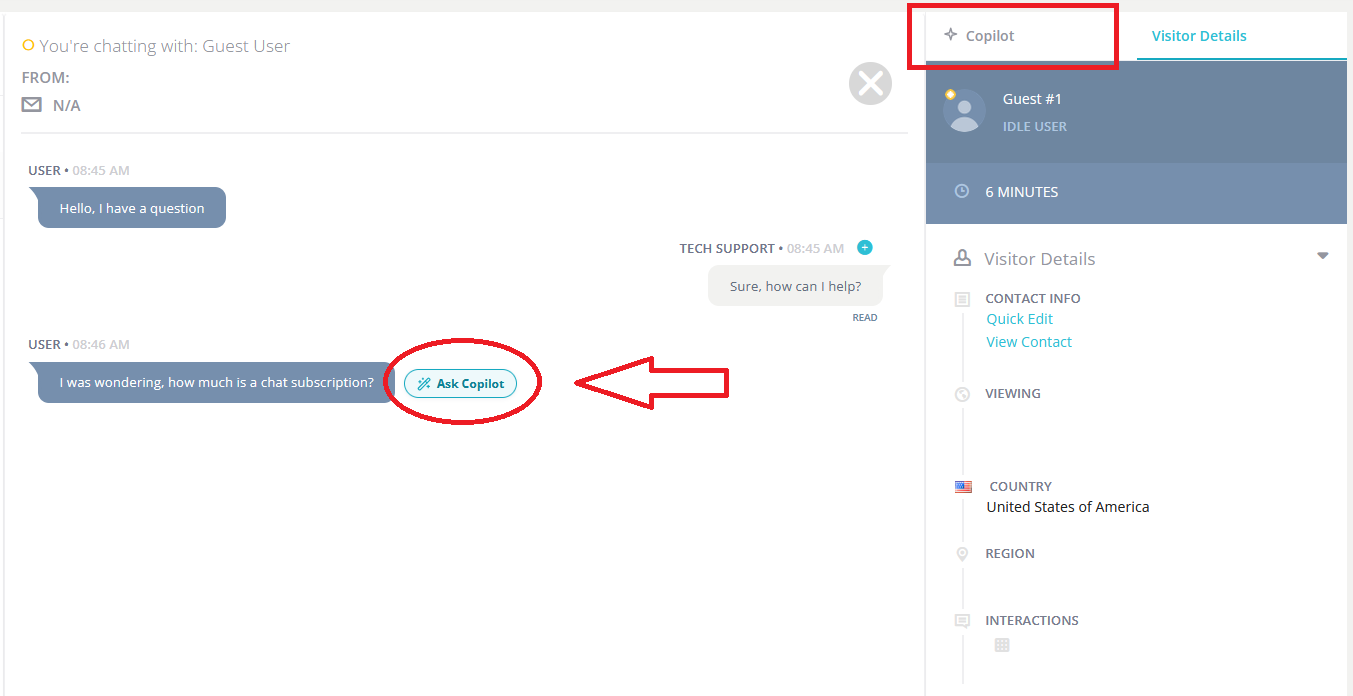
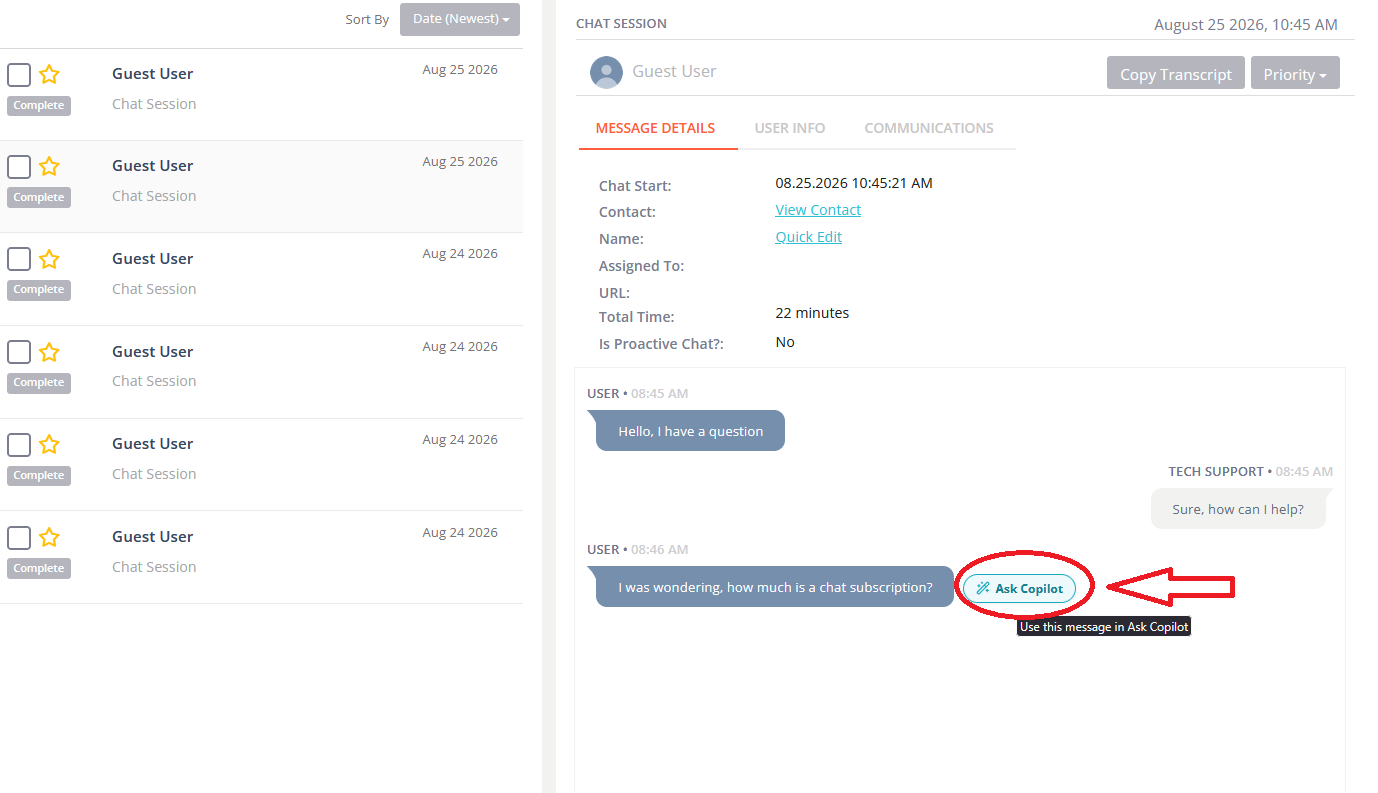
When an incoming chat arrives, there is an Ask Copilot button that appears when you hover next to the incoming chat message. Click on the button to automatically open the Copilot tab in the upper right.
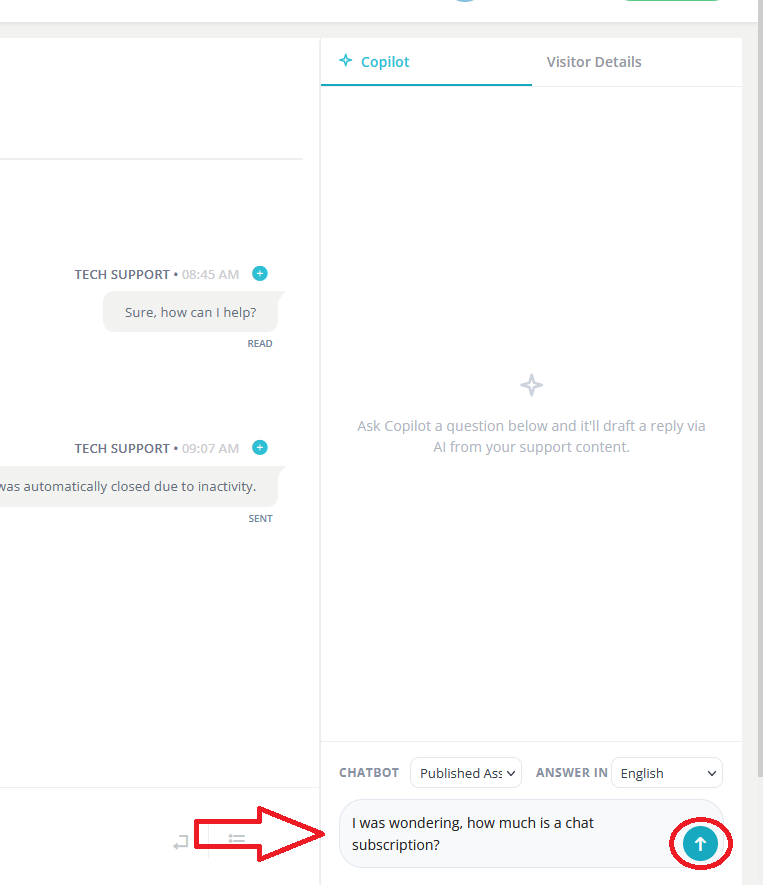
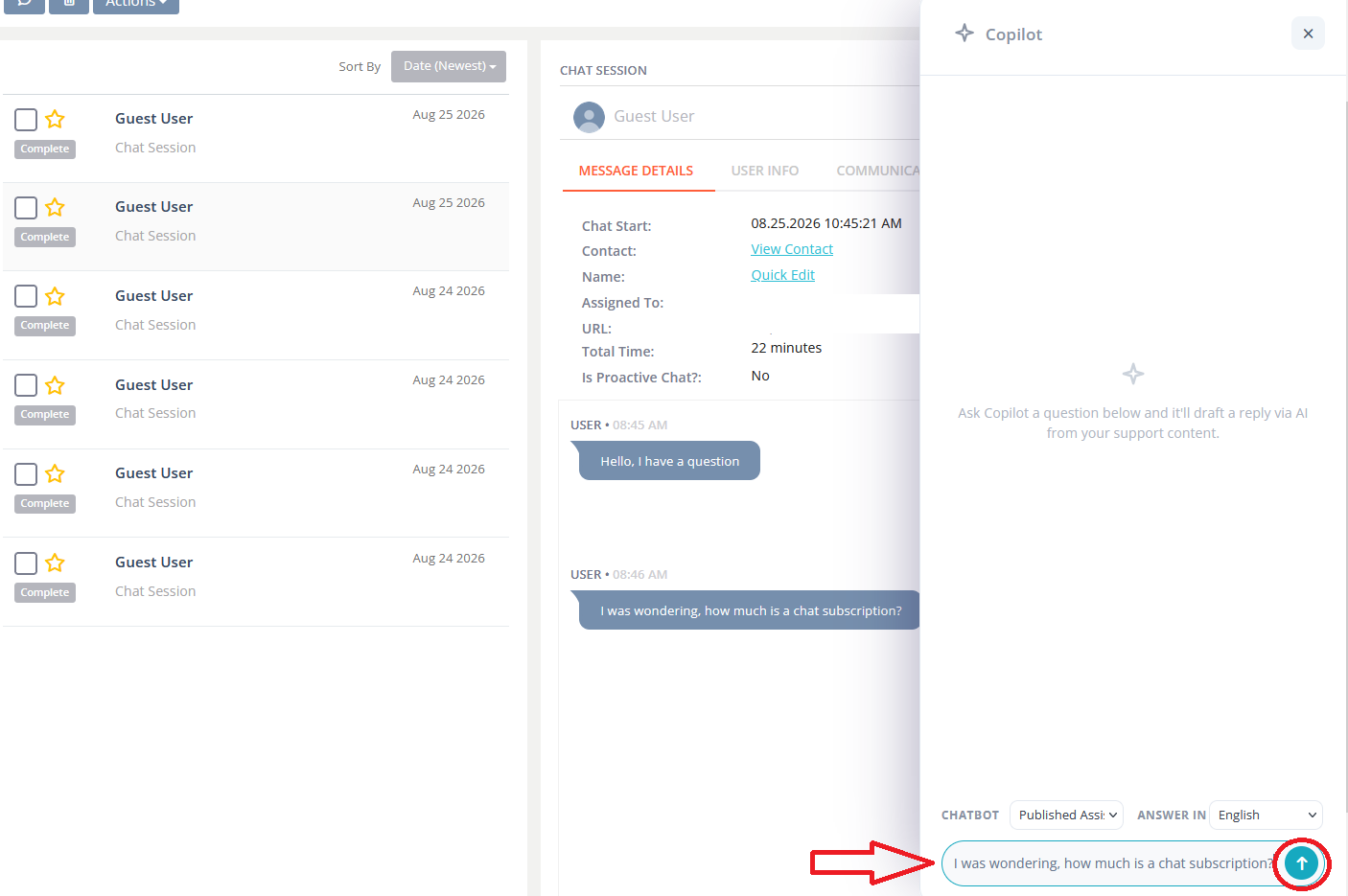
The Copilottab allows you to ask a question that is answered using the information available in your ChatGPT bot. When you click on the Ask Copilot button, the message the visitor sent is automatically populated into the Copilottab at the bottom. Hit enter or click on the submit button.
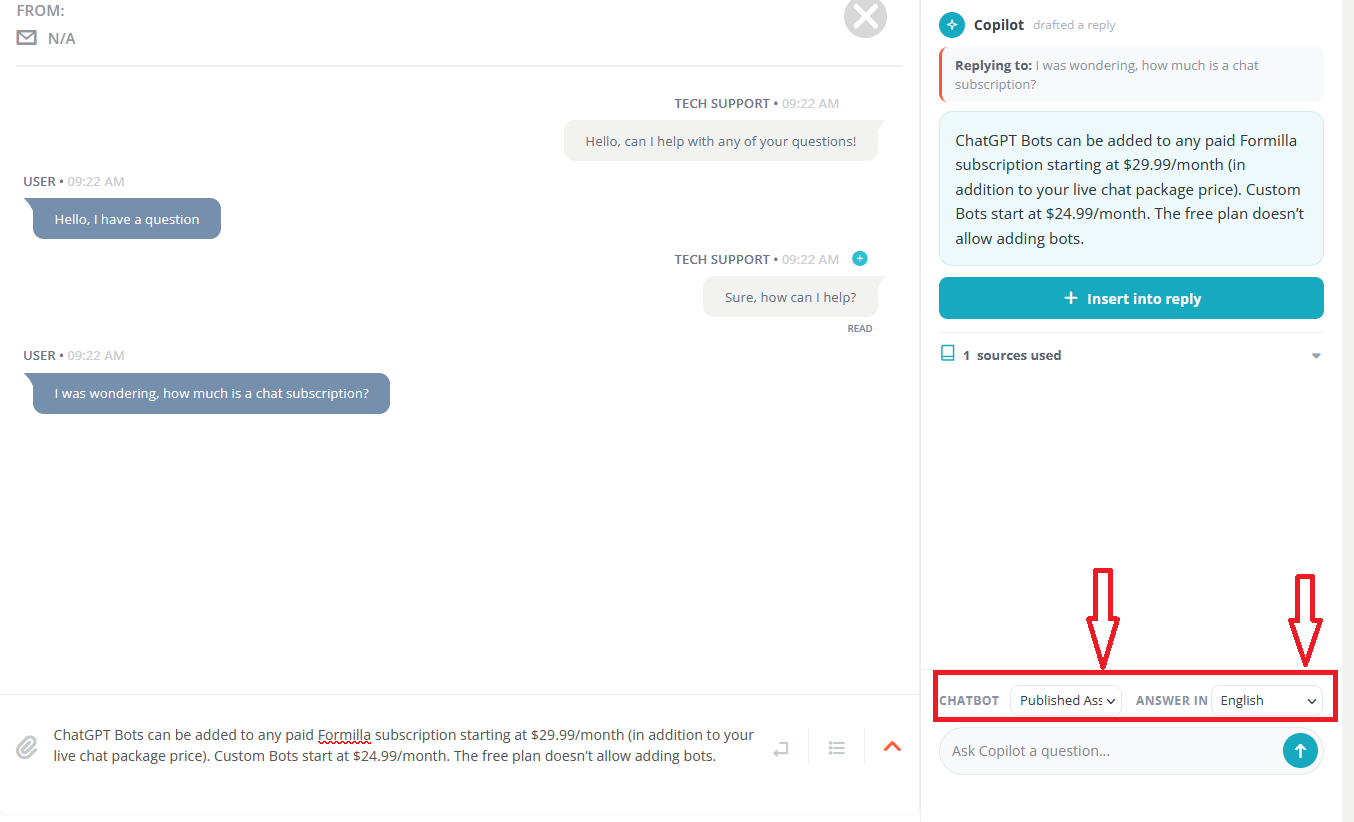
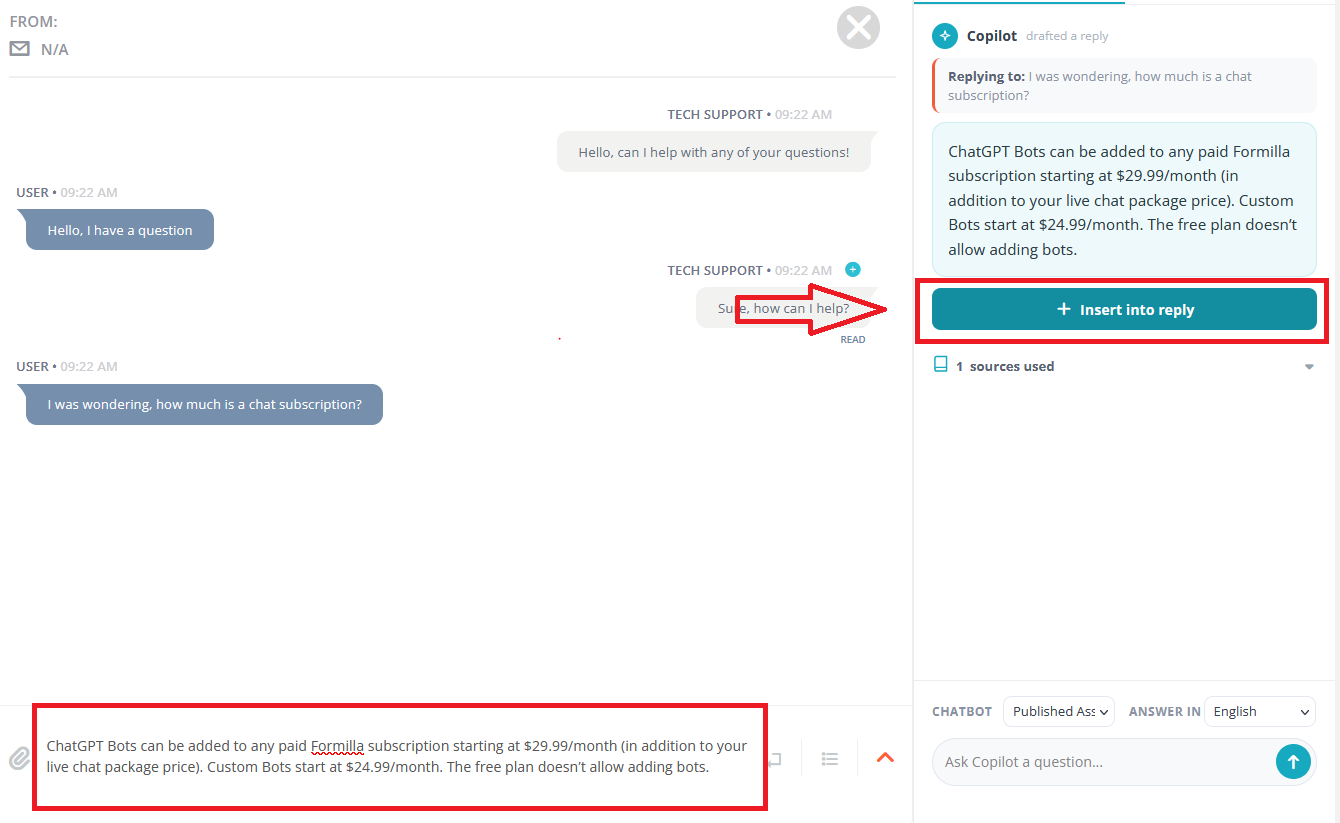
Copilot will then draft a reply. Click on the Insert into reply button to automatically populate the message field with the response drafted by Copilot. You can view the response in the messaging field and make any edits needed before sending the reply.
If needed, note that there is also a Chatbot dropdown and an Answer In (language selection) dropdown. The Chatbot dropdown lets you select which Chatbot to use for an answer (if you have multiple Chatbots created). This option does not appear if you only have one chatbot created.
The language that is being used by the chat widget the chat came in from will automatically be selected for the Copilot answer. However, if you have multiple widgets in different languages, you can select a different language if needed.
Copilot In Conversation History
You can also use Copilot in the Conversation History section. This is great to ask Copilot a questions and copy the answer to paste into your email inbox that you are using to get back to your visitor.
Find the chat in your Conversation History section. There is an Ask Copilot button when you hover next to a visitor message in the saved chat session.
Click on the Ask Copilot button to automatically open a Copilot tab. The message will automatically be populated as the question you are asking Copilot. Hit enter or click the submit button.
Copilot will compose an answer for you. Click on the Copy reply button to copy the answer to your clipboard. You can then paste the answer straight into your email message.
If needed, note that there is also a Chatbot dropdown and an Answer In (language selection) dropdown as well when using Copilot in the Conversation History section.
Global Copilot Tool
There is also a Copilot tool that can be clicked on in the left rail that is accessible no matter where you are in the dashboard. This has been added to use in situations where you may need quick access to Copilot outside of incoming chats or Conversation History. For example, if you are answering a question over the phone and you needed Copilot to give you a quick answer or look up information for you while you continue to converse, you can just click on the Copilot tool in the left rail. A Copilot tab will then fly out from the right side. You can submit your question there and get an answer while conversing on the phone, or generate a reply that you can copy and use in a social media reply, etc.
Copilot Use Cases to Note
Because you can create multiple ChatGPT bots and select which one to use while asking CoPilot, you can easily set up an unpublished bot. Got any information that you would rather not have the ChatGPT bot answering live chats giving out to everyone who asks, but you want the information available to live agents? Put that information on a ChatGPT bot that isn’t assigned to answer chats. Then, your live agent can still select the unpublished bot to use for Copilot answers.
Don’t want a bot answering chats at all, but still want your live agents to be able to use Copilot? No problem, just make sure no ChatGPT bots are assigned to answer chats at all. Just add all the information you need to your unpublished bot, and your live agents can still use the Copilot tool for assistance with their own responses.
Tips and Best Practices
When adding training information for your bot to use, each Topic should contain most of the information related to that subject matter. For example, if you have an E-commerce website and have a Return Policy, you can create a Topic named Return Policy and include your company’s policy as the content for that topic. When a user asks any question related to returns, the bot should find the answer in the Topic and produce a sufficient answer. Similarly, if you have Shipping information you’d like the bot to use, you can create a Shipping Topic and include all the relevant information in it.
Now, let’s say your a service provider (e.g. imagine a web development agency) and want to include detailed information about all your services. You can create a Topic for each service, such as Web Design, Custom Programming, Mobile App Development, etc. and each Topic would contain detailed information about each service. It would also make sense to have a general Topic such as Services that concisely summarizes each service in 1-2 sentences, so if users ask generic questions such as “what services do you provide?”, the bot will be much more successful answering that question if you added a high-level Topic that it can use to answer it.
Train your bot as often as possible! Review all messages or questions your bot wasn’t able to respond to so you can fill in any knowledge gaps and increase its success rate.
When reviewing the Train my Bot page, feel free to use the delete function to remove messages that do not apply to anything trained nor deserve a new Topic to be added. This way you can quickly clean up any low value messages and focus on the most important ones.
As always, please don’t hesitate to start a chat with us if you need any help configuring your bot, or with anything else!
Join the Formilla blog!
We offer actionable advice about live chat, chat bots, marketing automation, customer service, and sales. Sign up and we'll send you the best of the blog, from articles to infographics, every two weeks.